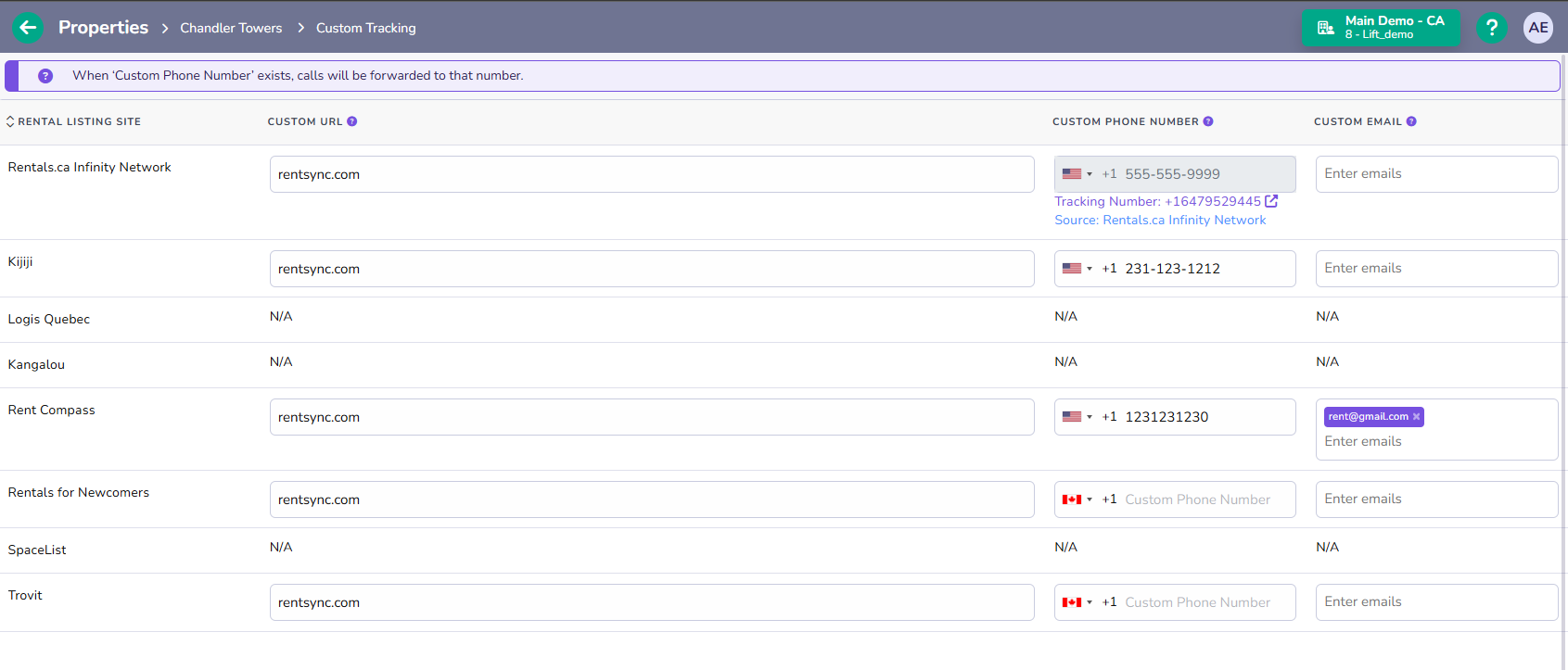
By default, your listings will pull contact information from the property-level contact fields. You can override this by adding a custom email(s), phone number, and/or property website URL.
Add Custom Tracking Information
- Click "Properties" from the main menu
- Click "Property List" in the sub menu
- Choose a property from the list
- Click "Custom Tracking" from the new sub menu
- Add Custom URLs, phone numbers, and/or emails
- Click the "Save" button on the bottom right of the page to finish
Note: The information added to these fields will override the property-level contact details, so be sure to add as many emails as needed to ensure your leads are delivered to the correct recipients.
Tip: The Website URL field refers to the link that will be posted on some ads that leads back to your chosen website. Note that not all Listing Sites have this function.
Rentsync Provided Call Tracking Number
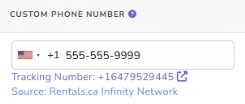
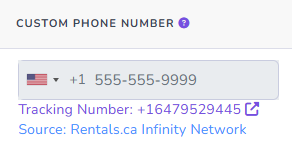
Rentsync has the ability to provide clients with Call tracking numbers. When Rentsync provides a property a call tracking number, in the custom tracking tab, the editable phone number will be locked and greyed out and you will see the tracking number below as well as the source of the number.
Setting the forwarding number
When a call tracking number is added to a property, the default configuration will be that the Property number will be the forwarding number as the tracking number will be linked to the property.
Note: The visual indicator is the greyed out field seen in the screenshot above.
You can customize the forwarding number and have it be different from the property number:
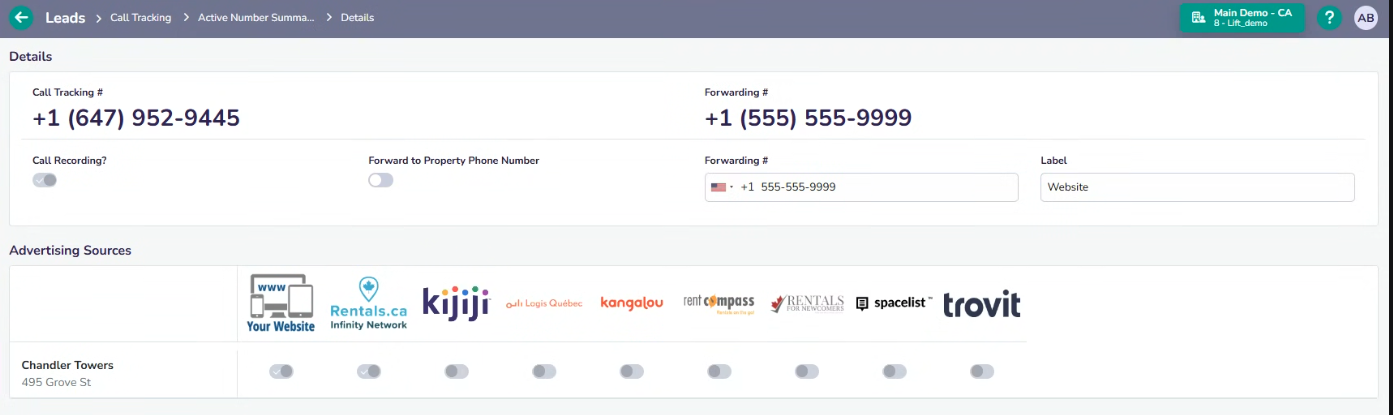
- Click Leads in the menu
- Click “+Call Tracking”
- Click Active number summary
- Click the call tracking number
- Toggle off “Forward to Property Phone Number”
This will result in the phone number being editable in the active number summary page as well as the custom tracking page at the property level.