
Issue: Agent's Calendar is Not Syncing at All
What it looks like: The agent sees the purple "Sync My Calendar" button in the agent settings page and it’s still showing after setup, or the admin sees no green sync indicator on the agent's profile.
Resolution: the agent must complete these steps themselves:
- Navigate to Tours > Calendar > Settings
- Under Calendar Sync Settings, change the Bulk Calendar Setting from Disabled to Custom
- Select Full Calendar Sync: this enables two-way communication between Rentsync and the personal calendar
- Toggle on the primary calendar
- Toggle on Import Event Titles (so calendar blocks show meaningful labels, not just "time block")
- Confirm only 1 calendar is toggled on to sync
- Click Save
- Navigate to Tours > Calendar and click the purple Sync button to force an immediate import
Note: Admins cannot complete this on behalf of an agent. Calendar sync is connected to the agent's personal login and must be set up by the agent directly.
If the agent has already done this and the sync is still not working, they should remove their calendar connection entirely and re-sync from the beginning.
Issue: "Need Administrator Approval" Error When Connecting Calendar
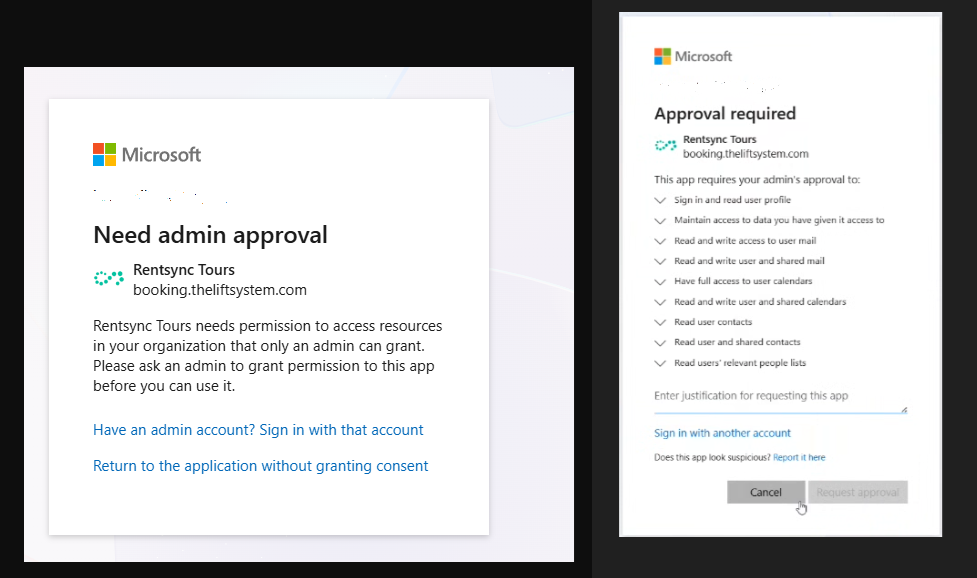
What it looks like: When the agent clicks Allow to connect their Google or Outlook account, a popup appears stating they need administrator access.
Cause: This is not a Rentsync issue. The agent's organization has an IT policy or firewall that blocks third-party applications from accessing their Google Workspace or Microsoft 365 account.
Resolution: The agent needs to contact their internal IT department and request approval for Rentsync Tours as a permitted third-party integration. Once IT approves the access, the agent can reconnect their calendar.
Issue: Tours Are Showing as Duplicate Blocks (Tour Appears Both Blue and Grey)
What it looks like: A booked tour shows up in the calendar both as a blue tour entry and as a grey time block, effectively double-blocking that time.
Cause: When a confirmed tour is sent to the agent's personal calendar, and the calendar is then synced back into Rentsync, the tour event can import as a time block in addition to existing as a tour.
Resolution: Contact support@rentsync.com with the property name and agent name. The support team can adjust the calendar sync settings to prevent the duplication.
Issue: Calendar Event Was Deleted but Time Is Still Blocked in the Widget
What it looks like: An agent deleted an event from their personal calendar to free up a time slot, but the slot is still showing as blocked in the booking widget.
Cause: Deleting an event from a personal calendar does not automatically remove the corresponding grey time block in Rentsync. Both must be removed independently.
Resolution:
- Navigate to Tours > Calendar
- Locate the grey time block for the time in question
- Click on it and delete it manually within Rentsync
- The time slot should now appear as available in the widget
Issue: Recurring Events Are Not Blocking Time in the Widget
What it looks like: An agent has a recurring weekly meeting in their personal calendar, but tours are still being booked during that time.
Cause: The calendar sync sometimes does not reliably import recurring events as time blocks.
Resolution: Use the Interval feature in the agent's availability settings to manually block off that recurring time. See How to Set Agent Availability for Tours for step-by-step instructions on adding intervals.
Issue: Confirmed Tours Are Not Appearing in the Agent's Personal Calendar
What it looks like: Tours are confirmed in Rentsync but the agent is not seeing them in their Outlook or Google Calendar.
Cause: The calendar sync may be configured as one-way only: set to "Get my calendar events" but not "Full Calendar Sync."
Resolution (agent steps):
- Navigate to Tours > Settings
- Confirm the sync mode is set to Full Calendar Sync
- Click Save, then go to Tours > Calendar and click Sync to force a refresh
Note: By default, all calendars start as Disabled when first connected. If the agent does not switch to Custom and toggle on their primary calendar, nothing will sync. This single step is missed more often than any other.
Still experiencing issues? Contact support@rentsync.com with the property name, agent name, and a description of what is happening.