
To view and pay invoices, you must have access to the Accounting section of your account. An existing admin can grant this access. Rentsync personnel cannot activate access for you.
Notes: Rentsync does not store credit card numbers or data. Payments are processed securely through Stripe. There are no transaction fees when paying invoices through Rentsync. The Stripe minimum payment amount is $0.51 for single invoices.
Important: Stripe only accepts credit cards and Visa debit cards. Regular debit cards and bank transfers are not accepted.
Navigate to your invoices
-
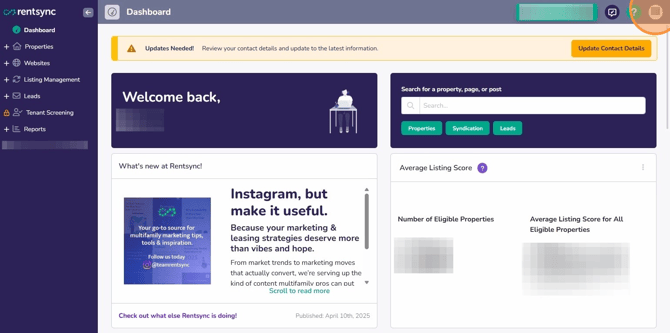
Click your initials in the top right corner.
-
-
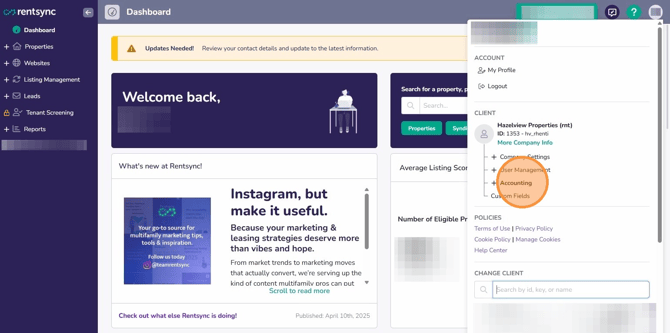
Click Accounting.
-
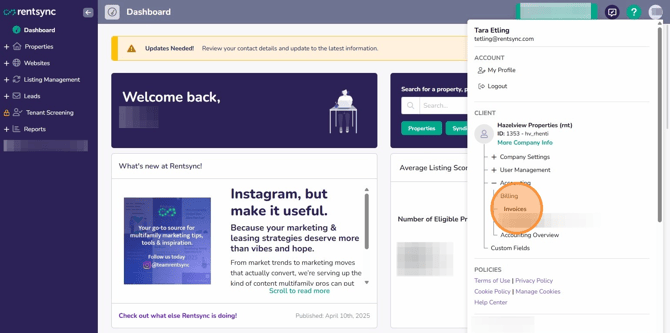
- Click Invoices.
-
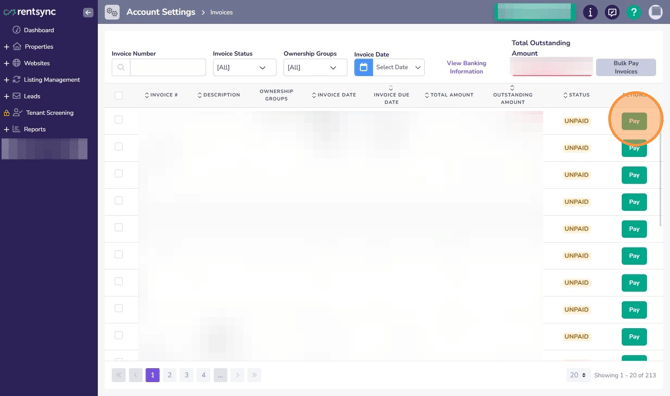
You'll see a list of all your past and current Rentsync invoices.
Use the filters to find an invoice

- Click any up or down arrow in a column title to sort the list.
- Use the Invoice Status filter to show only Paid, Overdue, or Unpaid invoices. Choosing "Unpaid" will not show overdue invoices.
- If ownership groups are set up on your account, use the Ownership Groups filter to narrow the list.
- Use the Invoice Date filter to select a preset range or create a custom date range.
- Use the search bar to find a specific invoice number.
Pay a single invoice
- Locate the invoice and click the Pay button on that line item.
-
-
On the payment screen, review the amount owing.
- Enter your payment information and click the Pay button to complete the transaction.
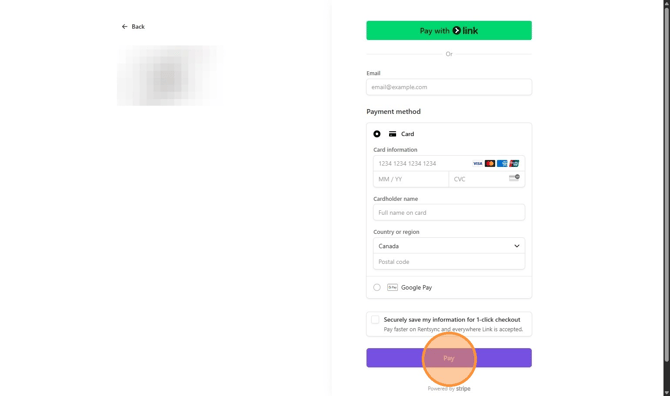
Tip: To pay a partial amount, click the grey Change Amount button and enter a custom dollar amount. The minimum payment Stripe accepts is $0.51.
Warning: Do not refresh or close the payment page while the payment is processing. A confirmation message will appear once the payment is complete.
Pay multiple invoices at once
-
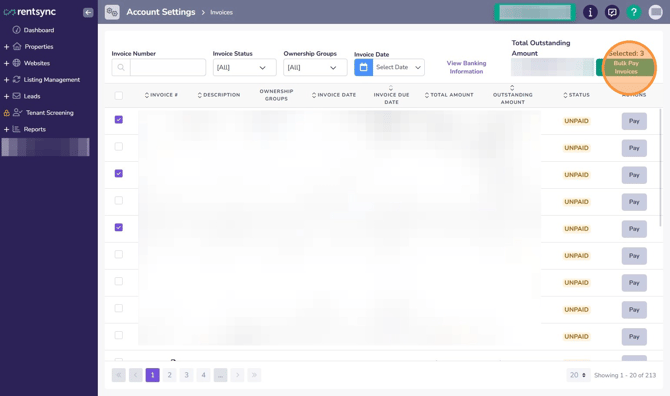
Select the checkbox next to each invoice you want to pay, or click the red Total Outstanding Amount button to select all unpaid and overdue invoices. At least two invoices must be selected for bulk pay to appear.
- Click the Bulk Pay Invoices button.
-
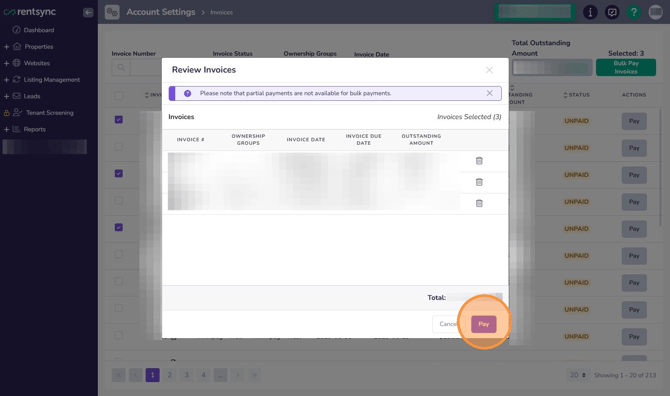
Review the selected invoices in the summary screen. Click the grey trash can icon to remove an invoice from the batch if needed.
- Click the Pay button to continue.
- Enter your payment information and click the blue Pay button to complete the transaction. Refresh the page to see your updated balance in the top right corner.
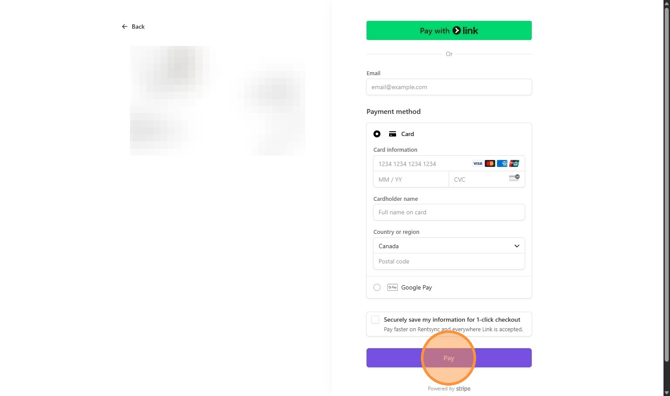
Note: Partial payments cannot be made when paying multiple invoices at once. The full amount must be paid.
Warning: Do not refresh or close the payment page while the payment is processing. A confirmation message will appear once the payment is complete.
Download your invoices
Click the  (download icon) next to an invoice number to download that invoice.
If you need further help paying your Rentsync invoices online, contact billing@rentsync.com.