
Check from the property
- Click Properties from the main navigation bar
- Click Property List from the sub menu
- Click on the property from the list
- Click Custom Tracking from the sub menu
Note: If the property has a Rentsync call tracking number, the Custom Phone Number field will be greyed out, and the tracking number will display in purple. The source of the tracking number displays underneath.

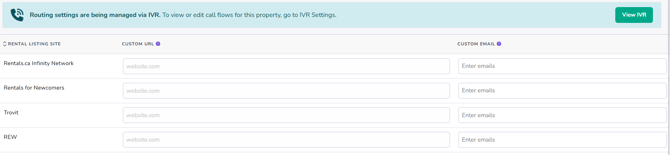
Note: If the property has IVR enabled, a blue banner displays at the top of the Custom Tracking page stating that routing settings are being managed via IVR, with a View IVR button to go to IVR Settings. The Custom Phone Number field does not display at all in this case, only Custom URL and Custom Email remain.
Bulk view from Quick Update
To see call tracking status across all of your properties at once:
- Click Properties from the main navigation bar
- Click Quick Update from the sub menu
- Click Custom Tracking
- Click Custom Phone Numbers
This page lists every property on your account, with a column for each rental listing site or source. If a property has a Rentsync call tracking number for a given source, the field displays the tracking number in bold, with "Source: Rentsync Call Tracking" underneath it. If the field is empty or shows a manually entered number instead, no Rentsync call tracking number is active for that source.
Important: You can only edit a custom phone number here if it is not linked to the property phone number. If the phone number is linked to the property, a popup will indicate that it is linked and will not let you edit it. Editing an unlinked custom phone number overrides the "Contact Us - Phone Number" field on your rental listings.
Note: Some fields on this page may display a message indicating that changes are temporary, as they are managed by an automated syncing process. Manual edits to these fields may be overwritten the next time that sync runs.
Check from Active Number Summary
- Click Leads from the main navigation bar
- Click Call Tracking from the sub menu
- Click Active Number Summary from the expanded sub menu
The Rentsync call tracking number displays beside the Forwarding Number, which is the number entered at the property level.