
Navigate to Active Number Summary
- Click Leads from the main navigation bar
- Click Call Tracking from the sub menu
- Click Active Number Summary from the expanded sub menu
What this page shows
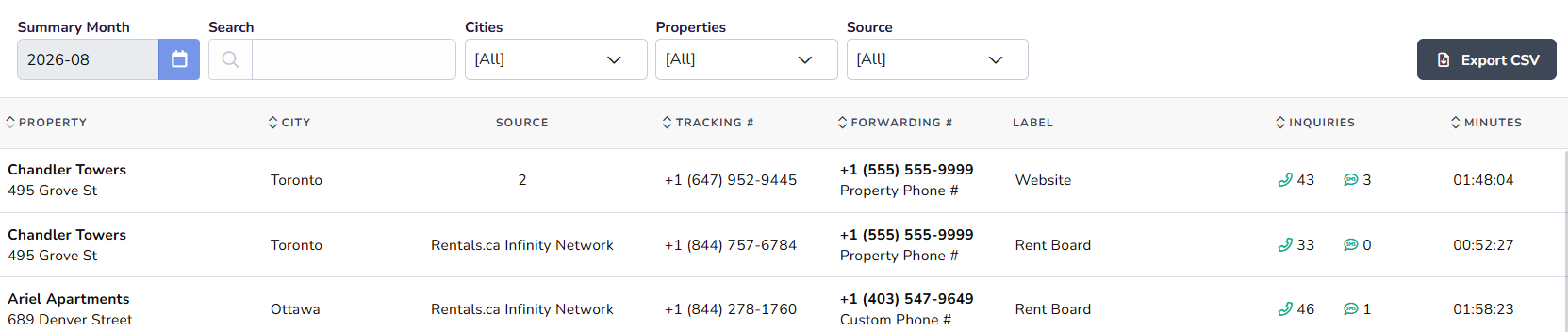
The Active Number Summary page lists every active call tracking number on your account for the month you select, along with the property it is tied to and how it has performed.
Each row includes:
- Property: The property and address the tracking number is associated with
- City: The city the property is located in
- Source: Where the tracking number is being used, such as a rental listing site, your website, or another marketing source
- Tracking #: The Rentsync call tracking number
- Forwarding #: The number the tracking number forwards calls to. By default this is the property phone number, and the text underneath identifies whether it is the property phone number or a custom phone number
- Label: The internal label assigned to the tracking number
- Inquiries: The number of calls and text messages received on that tracking number for the selected month
- Minutes: The total call minutes logged on that tracking number for the selected month
Note: Text messages sent to a tracking number are received by Rentsync as an email, not as a text message. If you have call tracking, make sure Convert SMS to Email is enabled in your Call and Text Settings.
Filter the summary
- Select a month in the Summary Month field to view data for that period. By default, this shows the current month
- Type in the Search field to find a specific property, tracking number, or label
- Select a city from the Cities dropdown to filter by location
- Select a property from the Properties dropdown to view only that property's tracking numbers
- Select a source from the Source dropdown to filter by where the number is used
Tip: Click Export CSV in the top right corner to download your filtered results for your own reporting.
View tracking number details
Click on any tracking number on the Active Number Summary page to open its Details page.
The Details page shows:
- Call Tracking #: The Rentsync call tracking number
- Forwarding (Property) #: The number the tracking number currently forwards to
- Forward to Property Phone Number: A toggle that controls whether the tracking number forwards to the property phone number by default
- Label: The internal label assigned to the tracking number
Advertising Sources
Below the details, the Advertising Sources section lists the property associated with the tracking number and shows a toggle for each rental listing site or source. A toggle switched on indicates the tracking number is active for that source.

How the website source works
This behavior is specific to Rentsync websites and does not apply to third-party websites.
If your Rentsync website is listed as a source for a Rentsync call tracking number, and the toggle for your website is turned on in Advertising Sources, your website automatically displays that call tracking number anywhere a phone number would normally appear.
By default, calls to that number forward to the property phone number. If the forwarding number has been customized, calls forward to the custom forwarding number instead.
Important: If the website toggle is turned off, the tracking number will not display on your Rentsync website, even if the source is labeled correctly. If that is the case, please reach out to support@rentsync.com to have them help resolve this.
Change the forwarding number
By default, a tracking number forwards to the property phone number entered at the property level. You can customize the forwarding number for an individual tracking number.
- On the Active Number Summary page
- Click the tracking number you want to update
- Toggle off Forward to Property Phone Number
- Enter the new forwarding number
- Click Save
Note: Once toggled off, the forwarding number becomes editable both here and on the property's Custom Tracking tab, and the property number and forwarding number can be different from that point on.